A WordPress website can work normally and then suddenly refuse to save a page, complete an update, import products, create a backup, or load a visual editor. In many cases, the site displays an error stating that the allowed PHP memory size has been exhausted.
This happens when a WordPress process needs more memory than PHP is permitted to use. The configured limit may be too low, or a plugin, theme, database query, or hosting restriction may be consuming excessive resources.
Increasing the limit can solve the immediate problem, but the goal is not to give WordPress unlimited memory. It is to provide enough capacity for legitimate operations while identifying the cause of unusual usage.
This guide explains how the WordPress memory limit works, how to check your current setting, how to increase it using four common methods, and what to investigate if the error continues.
What Is the WordPress Memory Limit?
The WordPress memory limit is the maximum amount of PHP memory WordPress can use during a single request or process.
Every action on a WordPress website requires PHP to do some work. Loading a page, saving a post, updating a plugin, running a backup, importing products, generating reports, and processing images all use server memory. Lightweight tasks may need very little, while complex operations can require substantially more.
The amount needed depends on the website. A simple blog may use little, while a WooCommerce store with extensions, a page builder, security scanning, and backups may require considerably more.
Memory-heavy tasks commonly include editing complex pages, importing product catalogues, producing WooCommerce reports, creating full-site backups, regenerating thumbnails, scanning for malware, and processing large database operations.
When a process reaches the permitted limit, PHP terminates it to stop one request from consuming all available server resources. WordPress may then show a critical error, a blank screen, a failed update, or a message similar to:
Fatal error: Allowed memory size exhausted
The message means PHP ran out of permitted memory during that operation.
Why WordPress Runs Out of PHP Memory
A low memory limit is one possible cause, but it is not the only explanation. Increasing the value without checking what triggered the issue can hide a larger problem.
A website may exhaust its memory because a plugin is inefficient, two plugins conflict, a theme contains poorly optimized code, or a database query is unusually large. The issue can also appear when several demanding tools run together, such as a backup plugin, security scanner, image optimizer, and database cleanup process.
Hosting restrictions are another factor. Providers may enforce separate limits for CPU usage, PHP workers, entry processes, execution time, or disk input and output. WooCommerce sites are especially likely to experience pressure during large imports, reports, bulk updates, and image processing.
If the problem occurs only during one demanding operation, a reasonable increase may be enough. If ordinary page views repeatedly consume hundreds of megabytes, the website needs investigation. Raising the limit repeatedly is not a sustainable fix for faulty code or an unsuitable hosting environment.
Before You Change the Memory Limit
Changing a WordPress configuration file is usually straightforward, but one syntax mistake can make the website temporarily unavailable.
Create a complete backup of the files and database before editing anything. Record the current PHP memory limit and identify the exact action that causes the error. Determine whether it appears on the front end, in the dashboard, while saving a page, during an update, or when a particular plugin task runs.
Review recent changes to plugins, themes, PHP versions, and hosting settings. Test configuration changes on a staging website where possible.
How to Check the Current WordPress Memory Limit
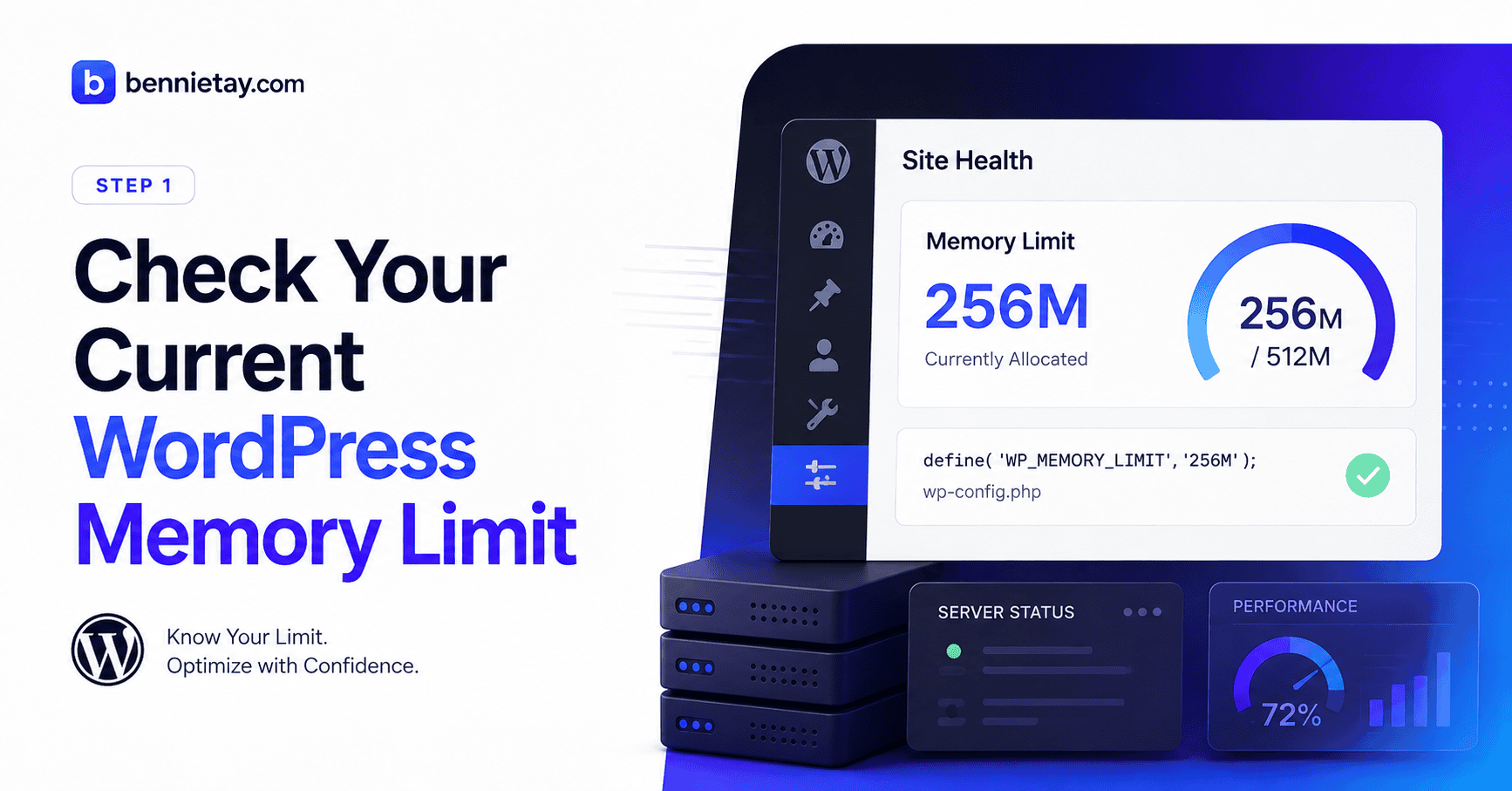
From the WordPress dashboard, go to:
Tools → Site Health → Info → Server
Find the PHP memory limit value. The same area may also show the PHP version, upload size, execution time, and other server settings.
Your hosting control panel may display a separate PHP memory value. This matters because WordPress can request a particular allowance, but the server controls the maximum amount PHP may actually allocate.
For example, setting WordPress to 512 MB will not work when the hosting provider caps PHP at 256 MB. The server-level restriction always takes priority.
Method 1: Edit wp-config.php
Editing wp-config.php is one of the most common ways to increase the WordPress memory limit.
The file is usually located in the main WordPress directory beside wp-admin, wp-content, and wp-includes. Access it through your hosting file manager or SFTP, and confirm that you are editing the correct installation.
Search the file for an existing WP_MEMORY_LIMIT definition. If one is already present, update it instead of creating a duplicate.
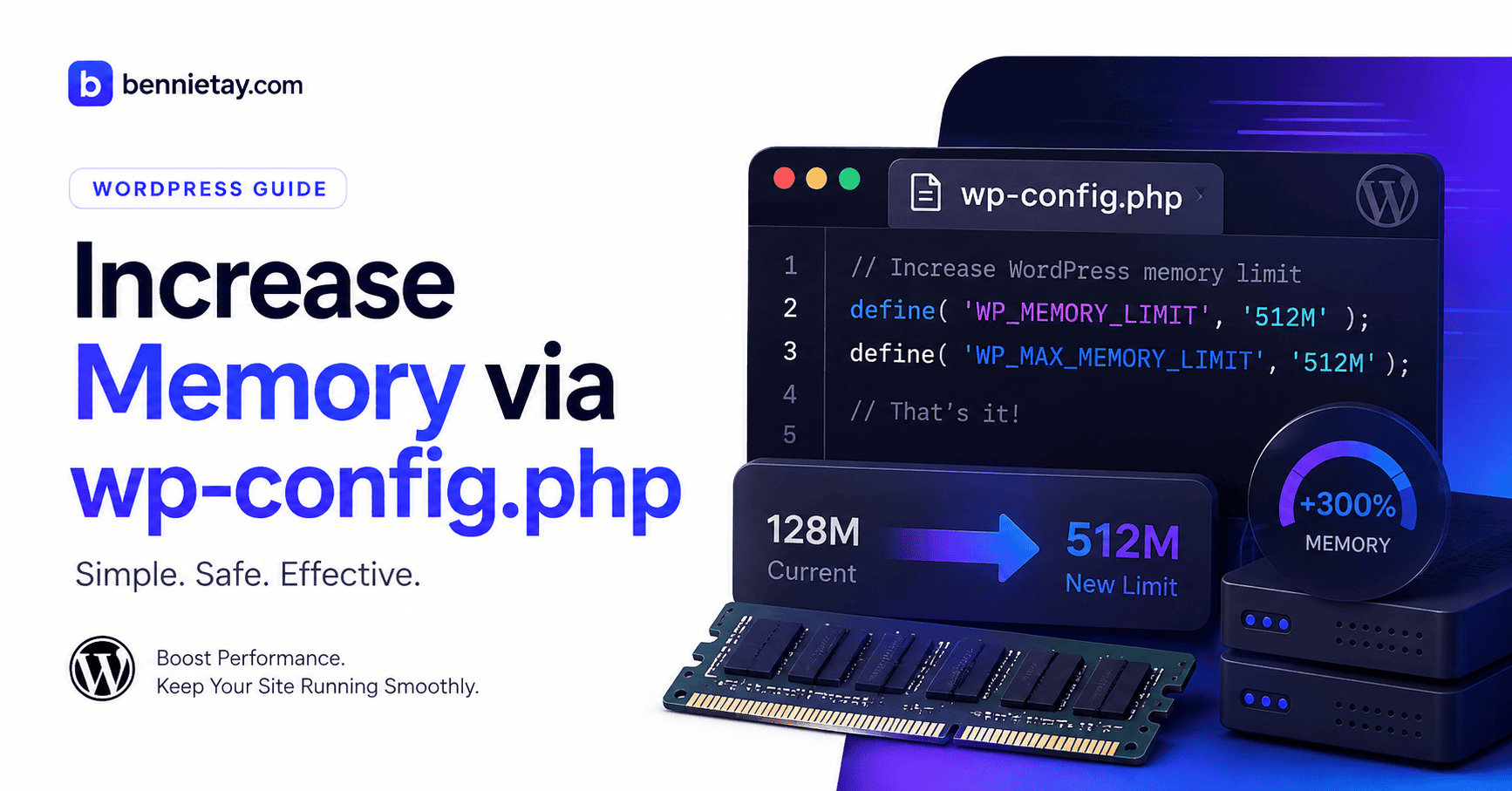
Add the following line above the comment indicating that editing should stop:
define( 'WP_MEMORY_LIMIT', '256M' );
This asks WordPress to use up to 256 MB for normal operations.
You can also define a higher allowance for resource-intensive administrator tasks such as imports, updates, and backups:
define( 'WP_MAX_MEMORY_LIMIT', '512M' );
A typical configuration looks like this:
define( 'WP_MEMORY_LIMIT', '256M' );
define( 'WP_MAX_MEMORY_LIMIT', '512M' );
Save the file, clear website and server caches, and check Site Health again. If the value remains unchanged, the host may be enforcing a lower limit or ignoring the WordPress request.
Method 2: Change the Limit in Hostinger
On Hostinger and similar managed platforms, the server-level PHP memory limit may be controlled through the hosting dashboard.
Sign in, open the management area for the correct website, and locate the PHP configuration or PHP options section. Find memory_limit, choose a supported value, save the setting, and verify the result in WordPress Site Health.
The server-level amount should be equal to or higher than the value requested in wp-config.php. A request for 256 MB cannot take effect if the hosting plan permits only 128 MB.
Menu names may change as hosting dashboards are updated, but the setting should remain within the PHP configuration area.
Some shared hosting plans restrict the values available. If you cannot select the amount required, contact the provider or consider whether the website has outgrown the plan.
Method 3: Use php.ini or .user.ini
Some servers allow PHP settings to be changed through php.ini or .user.ini.
Add this directive:
memory_limit = 256M
A php.ini file is commonly accessible on VPS, cloud, and advanced hosting plans. A .user.ini file can apply values at directory level on compatible servers; place it in the WordPress root directory and add the same line.
Changes may not appear immediately because some servers cache .user.ini settings. Managed hosts may also ignore local overrides. In that situation, use the hosting dashboard or ask support to change the server-level configuration.
Method 4: Use .htaccess
Websites running Apache with a compatible PHP handler may support PHP settings in .htaccess.
Add:
php_value memory_limit 256M
Use this method cautiously. Many modern hosts do not allow PHP directives in the root .htaccess file, and an unsupported directive may cause a 500 Internal Server Error.
If the site stops loading, remove the directive, save the file, and use another method.
Which Method Should You Use?
The best method depends on the hosting environment.
For shared hosting, start with wp-config.php and confirm the server setting in the hosting dashboard. Hostinger users should normally adjust the value in hPanel. VPS and cloud users may have direct access to php.ini, while .htaccess is less reliable.
Whatever method you choose, the server-level PHP limit determines the real maximum. WordPress cannot bypass a hard restriction imposed by the hosting provider.
How Much PHP Memory Does WordPress Need?
There is no universal setting for every website.
A small blog or brochure site may work well with 128 MB to 256 MB. A site using a visual page builder will often benefit from around 256 MB. WooCommerce stores, larger plugin stacks, backups, security scans, and large imports may require 256 MB to 512 MB for certain administrative tasks.
These figures are starting points, not performance targets.
Allowing WordPress to use 512 MB does not automatically make ordinary pages load faster. It simply permits PHP to consume more memory when a process genuinely needs it.
Website speed depends more on caching, server response time, database efficiency, images, scripts, CDN configuration, CPU, and PHP workers. Memory mainly affects reliability when the limit is too low and requests fail.
What to Do If the Error Continues
If the error remains after increasing the limit, investigate what is using the memory.
Start with the PHP error log. It may identify the file, plugin, or theme involved in the failed process. A plugin name in the file path does not prove that the plugin caused the entire problem, but it provides a useful starting point.
Test the suspected plugin on a staging site. Deactivate it, repeat the failed action, and compare the result. If the problem disappears, look for updates, known compatibility problems, conflicting plugins, alternative tools, or settings that reduce processing.
Keep WordPress core, themes, and plugins updated. Older software may contain inefficient code or bugs that have already been corrected. Create a backup before updating and confirm compatibility with the active PHP version.
Review the plugin stack for overlapping features. Multiple caching plugins, security suites, backup systems, image optimizers, analytics tools, or database cleaners can consume more resources and make troubleshooting unnecessarily complicated.
Large imports should be divided into smaller batches. Reduce the number of records processed at once, remove unnecessary columns, upload images separately, and run heavy jobs during lower-traffic periods.
Schedule backups, malware scans, reports, and database optimization at different times. Running them together forces them to compete for memory, CPU, PHP workers, and storage resources.
Check Other Hosting Limits
A PHP memory error may be part of a wider hosting problem.
Ask the provider whether the site is reaching limits for CPU usage, PHP workers, entry processes, concurrent connections, execution time, disk input and output, or account-level resources.
Increasing memory_limit will not solve a shortage of CPU or workers. A website may have enough memory but still fail because too many requests are waiting for too few available processes.
Common Mistakes to Avoid
One common mistake is editing the wrong wp-config.php file. Always confirm that the file belongs to the active website.
Another is defining WP_MEMORY_LIMIT more than once. Duplicate constants can cause warnings and confusion.
Requesting more memory than the server allows is equally ineffective. WordPress cannot override a hard hosting cap.
Avoid setting an excessively high or unlimited value. Faulty code could consume all available memory and affect the entire account. Use a reasonable limit and investigate persistent high usage.
Do not assume that more PHP memory means a faster website. It will not automatically improve page speed, database performance, or SEO.
Finally, never edit configuration files without a backup. One missing quotation mark or semicolon can take a site offline.
Memory Limit vs Upload Limit
The PHP memory limit is different from the maximum upload size.
memory_limit controls how much memory one PHP request can use. upload_max_filesize controls the maximum size of one uploaded file. post_max_size controls the total size of submitted form data, while max_execution_time limits how long a PHP script may run. max_input_vars controls how many form variables PHP accepts.
Increasing memory_limit will not automatically allow larger themes, plugins, videos, database files, or media uploads. Read the exact error before changing unrelated settings.
Does Increasing Memory Improve SEO?
A higher WordPress memory limit does not directly improve search rankings.
It can help indirectly when insufficient memory causes pages to fail, updates to remain incomplete, plugins to stop working, scheduled tasks to break, or the site to experience downtime.
SEO depends far more on crawlability, useful content, mobile usability, page speed, internal linking, uptime, and user experience. After resolving the error, focus on caching, database maintenance, image compression, efficient hosting, and reducing unnecessary plugins.
Frequently Asked Questions
Is 256 MB Enough for WordPress?
A 256 MB PHP memory limit is sufficient for many blogs, business websites, and moderately sized sites using a page builder. WooCommerce stores, large imports, security scans, backups, and complex plugin stacks may need more for specific tasks.
Is 512 MB Too Much?
A 512 MB limit can be reasonable for demanding administrator operations. It should not be necessary for every ordinary front-end request. If routine page views consume hundreds of megabytes, investigate the code, plugins, database, and hosting environment.
Why Does Site Health Still Show the Old Value?
The host may enforce a lower limit, the wrong file may have been edited, the constant may already be defined elsewhere, PHP may not have reloaded the setting, or the server may ignore local overrides.
Can a Plugin Increase the Memory Limit?
A plugin can request a higher value, but it cannot bypass a hard server-level restriction. Changing the correct configuration file or hosting PHP setting is more reliable.
What Is WP_MAX_MEMORY_LIMIT?
WP_MAX_MEMORY_LIMIT allows a higher memory allocation for selected administrator tasks such as updates, imports, and backups. It is separate from WP_MEMORY_LIMIT, which applies to normal WordPress operations.
Will More Memory Fix a Slow Website?
Only when low memory is causing requests to fail. A generally slow site should be checked for caching problems, oversized images, database queries, excessive plugins, slow hosting, scripts, fonts, and third-party services.
What If My Host Will Not Increase the Limit?
Ask whether the current plan supports a higher allocation. If it does not, optimize the website or move to hosting with more suitable PHP, CPU, and worker resources.
Final Recommendation
Begin by checking the current PHP memory limit and identifying the exact action that triggers the error. Create a backup, then make a conservative increase.
For many websites, 256 MB is a sensible starting point. Resource-intensive administrator tasks may justify a WP_MAX_MEMORY_LIMIT of 512 MB when the server supports it.
After making the change, repeat the failed action, confirm the new value in Site Health, review the PHP error log, and watch for unusually high memory consumption.
The objective is not to assign the largest possible number. It is to give WordPress enough memory for legitimate work while correcting any plugin, theme, database, code, or hosting issue responsible for excessive usage.
When a website continues to hit resource limits as traffic and functionality grow, the long-term answer may be better optimization, fewer overlapping plugins, or a move from restrictive shared hosting to a VPS or managed cloud environment.